
Find a word in a chapter or the whole book
Find in one chapter, search every chapter, and replace across the book.
Updated October 15, 2026
Bunsho has two ways to find words: a quick find in the chapter you are in, and a search across the whole book. Both are on every plan, including Free and signed out.
Find in this chapter
- Click inside the chapter and press ⌘F (Mac) or Ctrl+F (Windows).
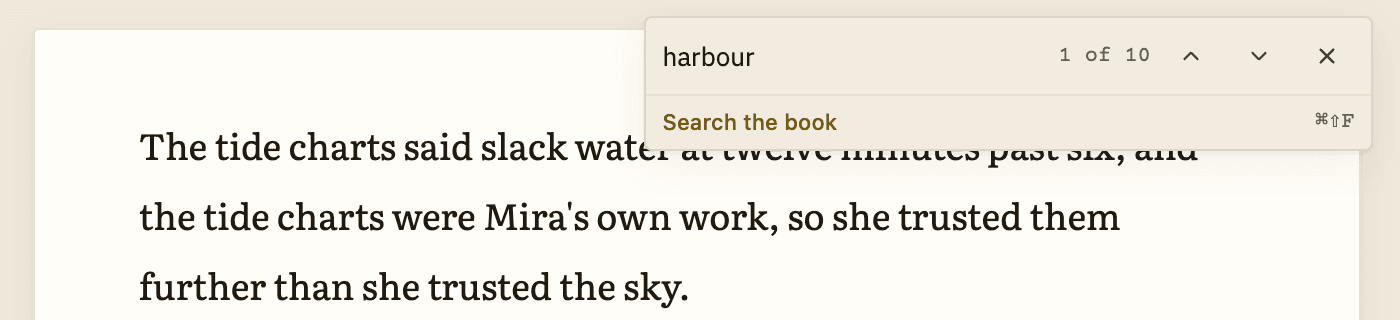
- A small box appears at the top right with the words Find in chapter…. Type what you want.
- Matches are marked on the page, and the box shows where you are, like 2 of 9. If nothing matches, it shows 0 of 0.
- Press Enter for the next match and Shift+Enter for the previous one. Or use the up and down arrows.
- Press Esc to close.
Search the whole book
- Press ⌘⇧F (Mac) or Ctrl+Shift+F (Windows). Or click the magnifying glass at the top of the binder. Or click Search the book under the quick find box.
- The search panel takes the place of the binder. Type in the box that says Search the book.
- Results are grouped by chapter. The top line says how many matches there are, like 14 matches · 5 scenes.
- Click a result to jump to it in the chapter.
- Press Esc to bring the binder back.
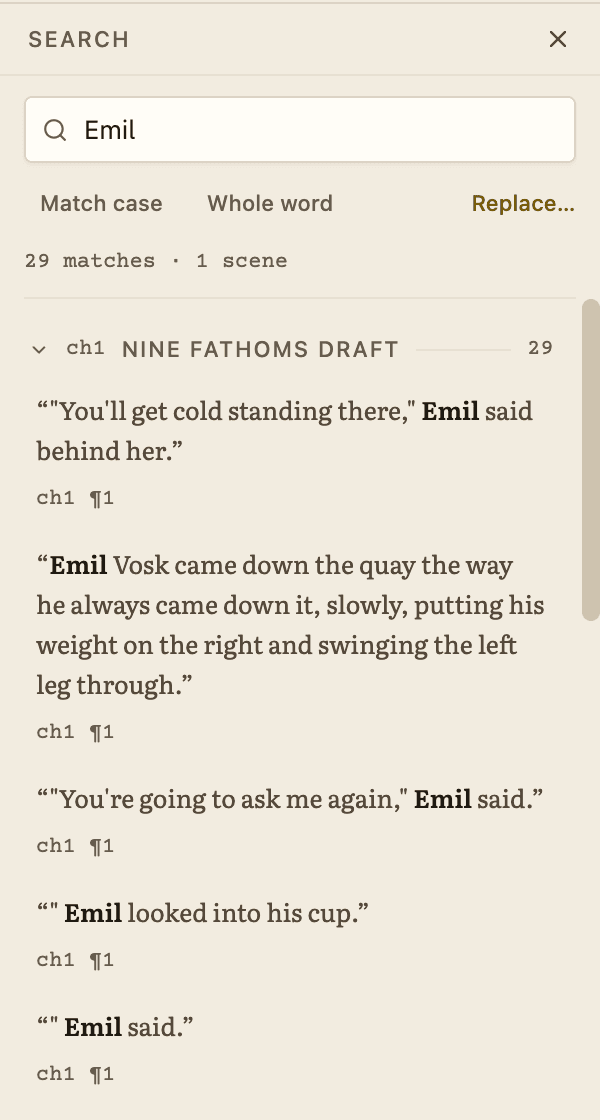
Two options sit under the box. Match case only finds words with the same capital letters. Whole word finds art but not start. What you type is searched as plain text, so symbols such as ? or * are just letters to find.
Replace
- In the search panel, click Replace…. A second box appears: Replace with.
- Type the new word.
- On any result, click Exclude to leave that one alone. Click Include to bring it back. Or click Replace on a single result to change just that one.
- To change all the rest, click Replace all and confirm with Replace every kept match?.
Before each chapter changes, Bunsho keeps a snapshot of it. After a replace, the panel shows what was done, for example 12 replacements across 4 scenes, with Undo all. Each replaced line also has its own Undo.
Related articles
Still stuck?
Write to us and tell us what you were trying to do. A person reads every message.
Email support@bunsho.io