
Use the binder to organise your chapters
Add, rename, move and delete chapters and folders in the panel on the left.
Updated October 15, 2026
The binder is the list of chapters and folders down the left side of the window. Each chapter is a page. Click one to open it and start writing.
Add a chapter or a folder
- Look at the top of the binder. Two small buttons sit on the right: a folder with a plus (Add Folder) and a page with a plus (Add Page).
- To put the new item inside a folder, click that folder first. With nothing selected, the new item goes at the top level.
- Click Add Page or Add Folder. A new item called Untitled Page or Untitled Folder appears.
- Rename it (see below).
You can also right-click a folder and choose New page here or New folder here.
Rename
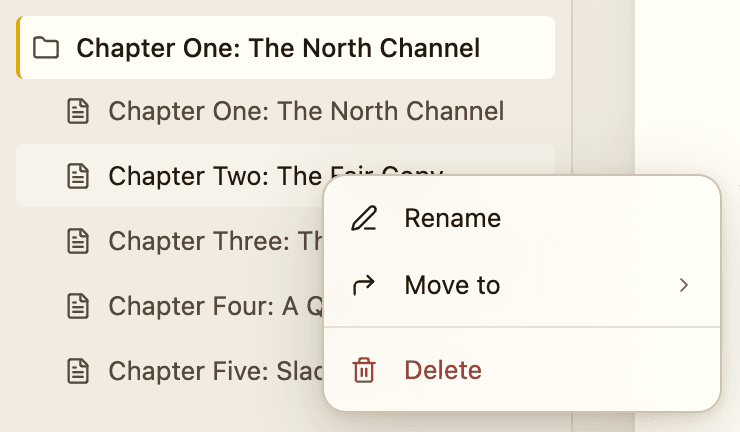
- Double-click the name, or right-click and choose Rename.
- Type the new name and press Enter. Press Esc to cancel.
- A name cannot be left empty. If you clear it and click away, the old name stays.
Reorder and move by dragging
Drag any chapter or folder up or down the list. A thin line shows where it will land. Drop it on a folder to put it inside that folder.
Prefer the menu? Right-click the item, choose Move to, then pick a folder from the list. A folder cannot be moved into itself.
The order in the binder is the order of your book. It is also the order used when you export.
Delete
- Right-click the chapter and choose Delete.
- If the chapter has words in it, Bunsho asks Move "Chapter name" to Trash? and shows the word count. Choose to continue.
- The chapter file goes to your computer's Trash (the Recycle Bin on Windows). Open the Trash to get it back.
The sample story
The built-in sample story is read-only for structure. Its add buttons and right-click menu are hidden, and you cannot rename, move or delete its chapters.
Search from the binder
The magnifying glass at the top of the binder opens book search. See Find a word in a chapter or the whole book.
Related articles
Still stuck?
Write to us and tell us what you were trying to do. A person reads every message.
Email support@bunsho.io