
Import a manuscript
Bring a draft in from Word, Markdown, plain text or Fountain, step by step.
Updated October 15, 2026
If you already have a draft, you do not need to retype or paste it. Bunsho can read it from a file and turn it into a new book, with each chapter on its own page. This article walks through the whole thing. It takes a couple of minutes.
What kinds of files can I import?
- Word documents (.docx). The most common choice. Chapters are found from your heading styles.
- Markdown (.md or .markdown). Plain text files where a line starting with # is a heading. Chapters are found from those lines.
- Plain text (.txt). Just text with no headings. It comes in as one page.
- Fountain (.fountain). A plain-text format for screenplays. It comes in as a screenplay project with one page per scene. A .txt file that is written in Fountain is treated the same way.
Other files, such as PDF, Pages, Final Draft (.fdx), RTF or EPUB, cannot be imported directly. Bunsho tells you so and lists the formats that work. To bring one of those in, first save or export it as a Word document. See the guides for Google Docs and Scrivener and Pages.
Import your file
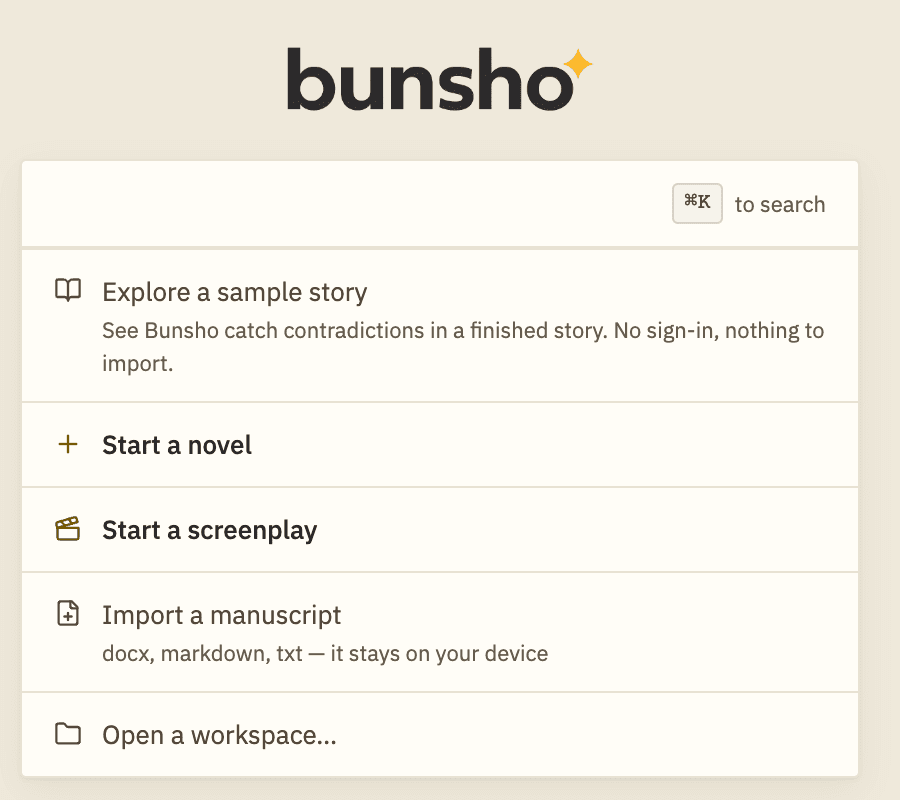
- Open Bunsho. From the start screen, click Import a manuscript (shown below). Or, from the menu bar, choose File → Import Document... (shortcut ⌘⇧I on a Mac, Ctrl+Shift+I on Windows).
- A window titled Select Document to Import opens. Find your file and click it. The window lists only files Bunsho can read.
- Click Open. Bunsho reads the file. A long book takes a few seconds.
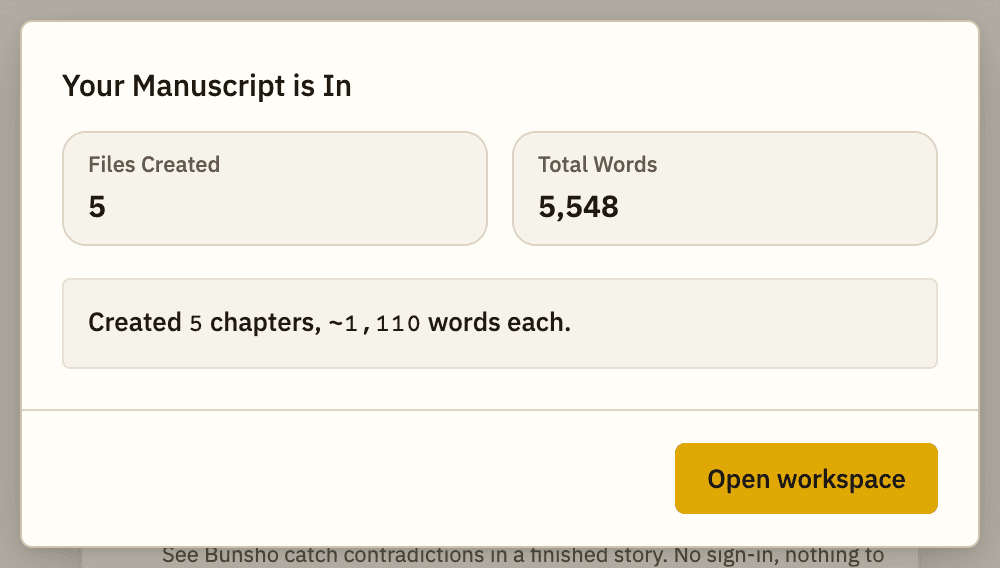
- A box titled Your Manuscript is In appears. This is the review. Read it, then click Open workspace.
Your imported book becomes a new project, saved in a Bunsho folder in your home folder.
How your book gets its name
Bunsho names the book after your file. Import nine-fathoms-draft.docx and the book is called "nine-fathoms-draft". A chapter heading is never used as the book's name.
To use your real title instead, make the very first line of your file the book's title, styled as a heading, and put your first chapter heading straight after it, with no text in between. In Word, style both lines Heading 1, or the title Heading 1 and the chapters Heading 2. In Markdown, write # Nine Fathoms and then # Chapter One on the next line. Bunsho reads that first line as the title, and it does not become a page.
If there is text under your title line, such as a subtitle or a dedication, Bunsho treats the line as a chapter and names the book after the file. You can rename the book at any time: right-click the top folder in the Binder and choose Rename.
How chapters are made
Bunsho starts a new page every time it meets a heading. Every heading counts, from level 1 to level 6, and each one becomes one page in the Binder, in the order they appear in your file. The heading's text becomes the page's name, and everything under it, up to the next heading, becomes the page's text.
Two things follow from this:
- Use headings only for chapter titles. If you also use headings for scenes or sub-sections, each one becomes its own page.
- Text that only looks like a heading (bold, centred, or a bigger font) does not count. It must be a real heading style. See fix chapter headings in Word.
If your file has text before its first heading, such as a dedication or an epigraph, that text gets its own first page, named after its opening words.
What a book with no headings does
A file with no headings is not rejected. The whole book comes in as one long page. Plain text (.txt) files come in this way too, because plain text has no way to mark a heading. The review box then says "Imported as one page."
You can fix this in either of two ways:
- Easiest: add headings to your file and import again. See prepare your manuscript for import.
- Inside Bunsho: in the Binder, click Add Page for each chapter and move the text across.

What carries over and what does not
- Carries over: every word, your paragraphs, and your italics and bold.
- Does not carry over: images, tables, footnotes and comments. Keep your original file if you need them.
- Tracked changes in a Word file are accepted, as if you had clicked Accept All. The review box tells you when this happened, and how many comments were left behind.
The review box
After an import, the box titled Your Manuscript is In shows how many pages were made and your total word count. Underneath, one short message tells you how it went:
- "Created 24 chapters, ~3,200 words each." means it looks like a normal book.
- "Imported as one page." means no headings were found.
- If chapters average more than 8,000 words, it suggests splitting them smaller.
After the import
- Click Open workspace. Your new book opens.
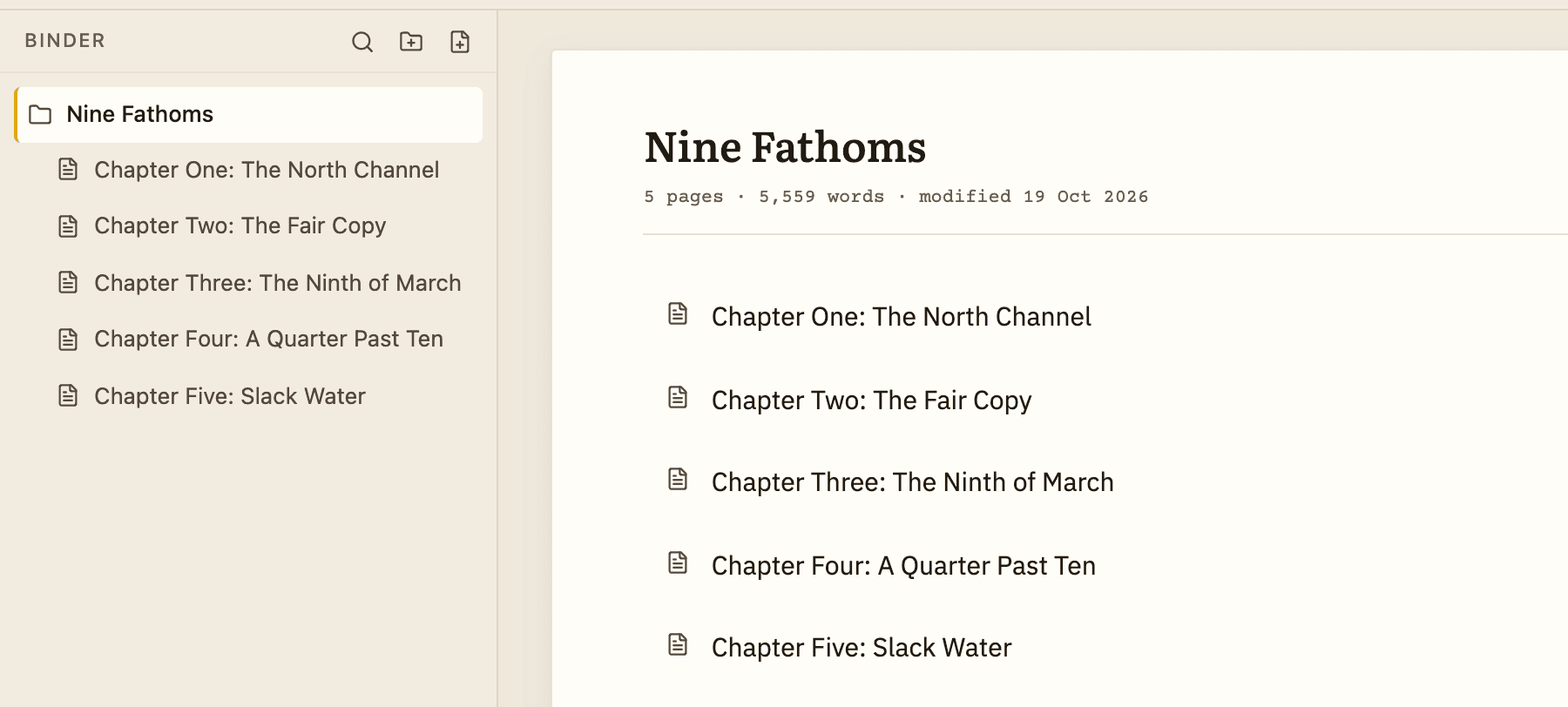
- Look at the Binder on the left. You should see one page per chapter. Click a few and skim them to check the text came through.
- If the chapters are wrong, nothing is lost. Fix the file and import it again, or fix the Binder by hand.
- Bunsho may then ask "Read your manuscript?" and show the cost. This is optional. Click Not now to skip it and just write. Checks only ever run when you ask. See check a chapter.
Importing needs no account. Your file is read on your computer.
Related articles
Still stuck?
Write to us and tell us what you were trying to do. A person reads every message.
Email support@bunsho.io