
Create your first book
Start a new novel or screenplay, choose where it is saved, and add your first chapter.
Updated October 15, 2026
In Bunsho, a book is called a workspace: one folder on your computer that holds everything about it. You do not need an account to start one.
Start a new book
- On the start screen, click Start a novel. If you are writing a screenplay, click Start a screenplay instead.
- Type a title where it says Untitled novel (or Untitled screenplay).
- Check the Novel and Screenplay choice under the title. Click the one you want if it is not already selected.
- Look at the folder line. By default your book is saved in a Bunsho folder inside your home folder. Click Change to pick somewhere else.
- Click Create novel (or Create screenplay), or press Return.
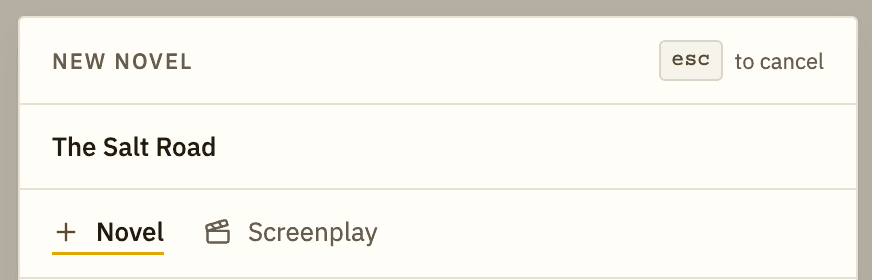
Already inside a book? Choose File → New Workspace, or press ⌘N on a Mac or Ctrl+N on Windows. ⌘K or Ctrl+K opens a quick switcher where you can also start a book.
Where it is saved
Bunsho makes a folder named after your title, ending in .boworkspace, in the location you chose. Your chapters are saved inside it as you write. You can copy or back up the folder like any other.
Add your first chapter
The panel on the left is the Binder. It lists your chapters and folders. A chapter is a page in the Binder.
- In the Binder header, click the Add Page button (the page icon with a plus). Hover over it to see its name.
- A page called Untitled Page appears. Double-click its name to rename it, or right-click it and choose Rename.
- Click the page to open it, then start typing.
Use Add Folder (the folder icon with a plus) to group pages, for example into parts. Select a folder first and new pages are added inside it.
One project on the free plan
Without a paid plan, Bunsho includes one project of your own. If you try to make a second one, the app tells you so and shows your options. The sample story does not count toward this. See plans and credits for details.
Already have a draft?
You do not have to retype it. See import a manuscript.
Related articles
Still stuck?
Write to us and tell us what you were trying to do. A person reads every message.
Email support@bunsho.io