
Export your manuscript
Save your book as a Word or Markdown file, with a title page if you want one.
Updated October 15, 2026
Export turns your chapters into one file you can send to an editor, an agent or a reader. It is on every plan. Nothing in it is limited by your plan.
Export
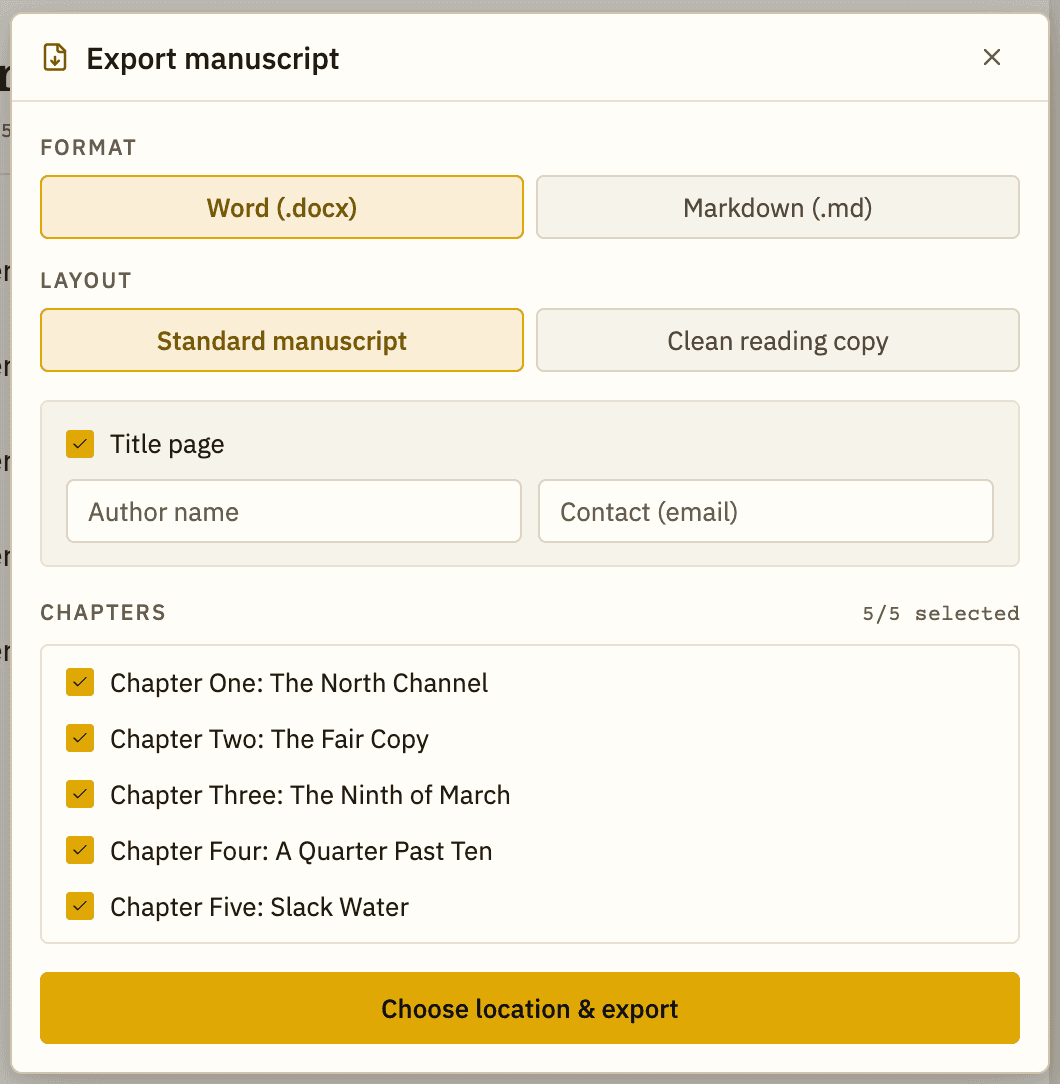
- Choose File → Export Manuscript… or press ⌘⇧E (Mac) or Ctrl+Shift+E (Windows).
- In the Export manuscript window, pick a Format: Word (.docx) or Markdown (.md).
- Pick a Layout: Standard manuscript or Clean reading copy.
- Choose whether to include a Title page. If you do, fill in Author name and Contact (email). Bunsho remembers them for this book.
- Under Chapters, untick any chapter you want to leave out. The count shows selected out of the total.
- Click Choose location & export, then pick where to save the file.
- When it finishes, Bunsho shows how many chapters were written and about how many words. Click Done.
Good to know
- Chapters go out in binder order. Fix the order in the binder first.
- Screenplay projects export as a Fountain file (.fountain) and have no format choice.
- If something could not be turned into the file, Bunsho lists warnings in the window after the export.
- Exporting over an existing file replaces it. Pick a new name if you want to keep both.
Bunsho keeps a snapshot of each export. When an edited copy comes back, you can import it and Bunsho shows what changed. See Import a manuscript.
Your book also lives as files on your computer. See Where your files live.
Related articles
Import a manuscriptBring a draft in from Word, Markdown, plain text or Fountain, step by step.Use the binder to organise your chaptersAdd, rename, move and delete chapters and folders in the panel on the left.Where your files liveYour book is a folder of plain files on your computer. You choose where it goes.
Still stuck?
Write to us and tell us what you were trying to do. A person reads every message.
Email support@bunsho.io