
Install Bunsho on a Mac
Download Bunsho, drag it to Applications, and open it for the first time.
Updated October 15, 2026
Bunsho is free to download. You do not need an account to install it or to write in it. It runs on macOS 10.15 or newer.
Which download do I need?
There are two Mac downloads on the download page: one for Macs with Apple silicon (M1 or later) and one for Macs with an Intel chip. The Intel file has "intel" at the end of its name.
Not sure which Mac you have? Click the Apple menu at the top left of your screen and choose About This Mac. If the line says Chip and names an Apple M-series chip, pick Apple silicon. If it says Processor and names Intel, pick Intel.
Install it
- Go to the download page and choose the download for your Mac.
- When the download finishes, open the file. It ends in .dmg. You will find it in your Downloads folder.
- A small window opens. Drag the Bunsho icon onto the Applications folder shown in that window.
- Wait for the copy to finish, then close the window. You can eject the Bunsho disk from the Finder sidebar and delete the .dmg file.
- Open your Applications folder and double-click Bunsho.
What you see on first launch
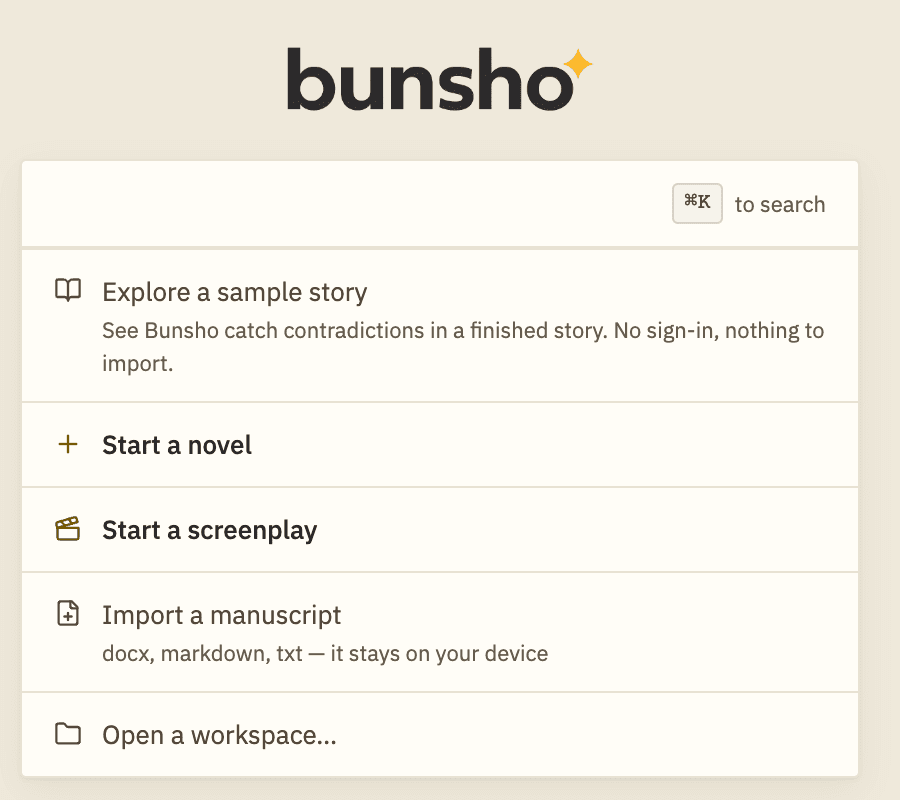
Bunsho opens to a start screen. From there you can start a novel or screenplay, import a manuscript, or explore a sample story. With no projects yet, the sample story is listed first.
Updates
Bunsho looks for updates by itself while it is open. When one has downloaded, a small notice appears at the top: "A Bunsho update is ready. Restart to update." Click Restart now when you are ready, or close the notice and keep writing. It will wait.
To check right away, choose Bunsho → Check for Updates... from the menu bar. Updates never need an account.
Related articles
Still stuck?
Write to us and tell us what you were trying to do. A person reads every message.
Email support@bunsho.io