
Spell check and your dictionary
Fix a misspelled word with a right-click, skip names you invented, and add words to your book's dictionary.
Updated October 15, 2026
Bunsho underlines words it does not recognise as you type. The built-in word list is English (US).
Fix a word
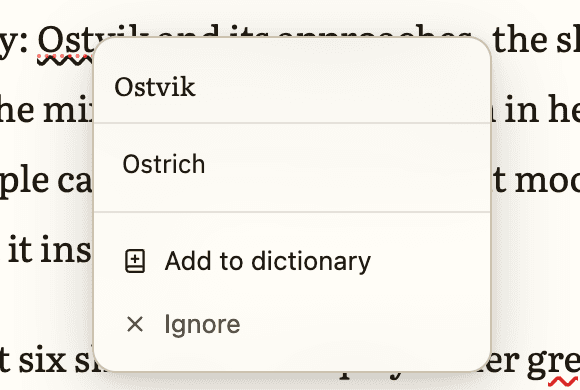
- Right-click the underlined word.
- A small menu opens with the word at the top, then up to five suggestions. If there are none, it says No suggestions.
- Click a suggestion. It replaces the word right away.
Tip:Right-click a word that is spelled correctly and nothing opens. The menu only appears on words Bunsho thinks are wrong.
Names and made-up words
Character names, places and invented terms will often be underlined. You have two choices in the same menu.
- Ignore stops marking that word for now. It lasts for this session only.
- Add to dictionary keeps the word in your book's own dictionary.
Add a word to your dictionary
- Right-click the word and choose Add to dictionary.
- A box opens titled Add "word" to dictionary.
- Pick a Category: character, location, term or general.
- If you like, add a note under Context (optional), such as who the character is.
- Click Add word. Click Cancel to back out.
The dictionary belongs to the book you have open, so words you add for one book do not follow you into another.
Careful:A word you add may still be underlined in the editor for now. If it bothers you, use Ignore on it as well.
Apostrophes
A separate setting, Fix missing apostrophes in Settings, turns thats into that's as you type. Turn it On or Off there.
Related articles
Write in the editorStyle your text, change the font and size, and know that your words are saved as you type.Find a better word with the thesaurusSee word endings and synonyms as you type, and turn the suggestions on or off.Find a word in a chapter or the whole bookFind in one chapter, search every chapter, and replace across the book.
Still stuck?
Write to us and tell us what you were trying to do. A person reads every message.
Email support@bunsho.io