
Read a finding
What a finding card shows, the two passages side by side, and what you can do: it is a question, so you decide.
Updated October 15, 2026
When a check turns up something that may not fit, it appears as a finding in the Continuity tab. A finding is a question: slip or on purpose? You decide. Bunsho can be wrong, and you know your story best.
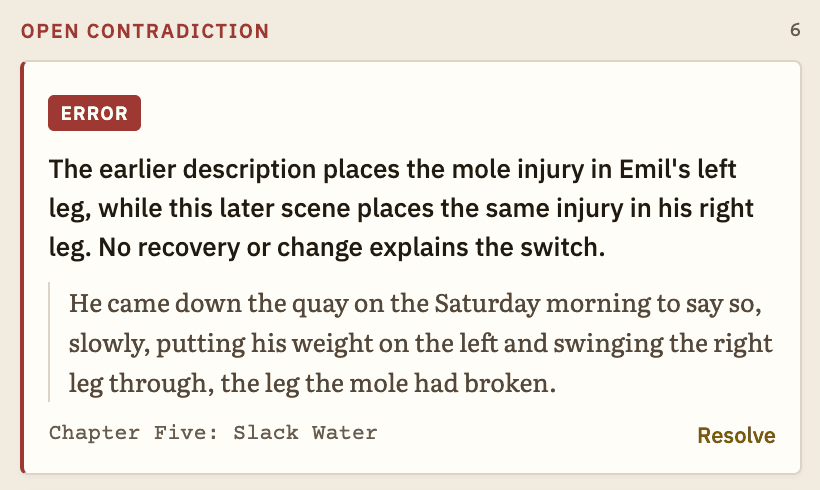
The list in the Continuity tab
- Findings are sorted into two groups: Open contradiction (the ones Bunsho is most sure about) and Worth a look.
- Each card has a short title. Open-contradiction cards also quote the line from your book, so you can see the problem without opening anything.
- Under the card is where it came from, such as a chapter. On the right is Resolve.
- Chips above the list let you narrow it by kind, such as Factual, Timeline, World, Voice or Plot Threads.
- Findings you have closed collect at the bottom under N resolved this session. Click Show to see them.
Open a finding
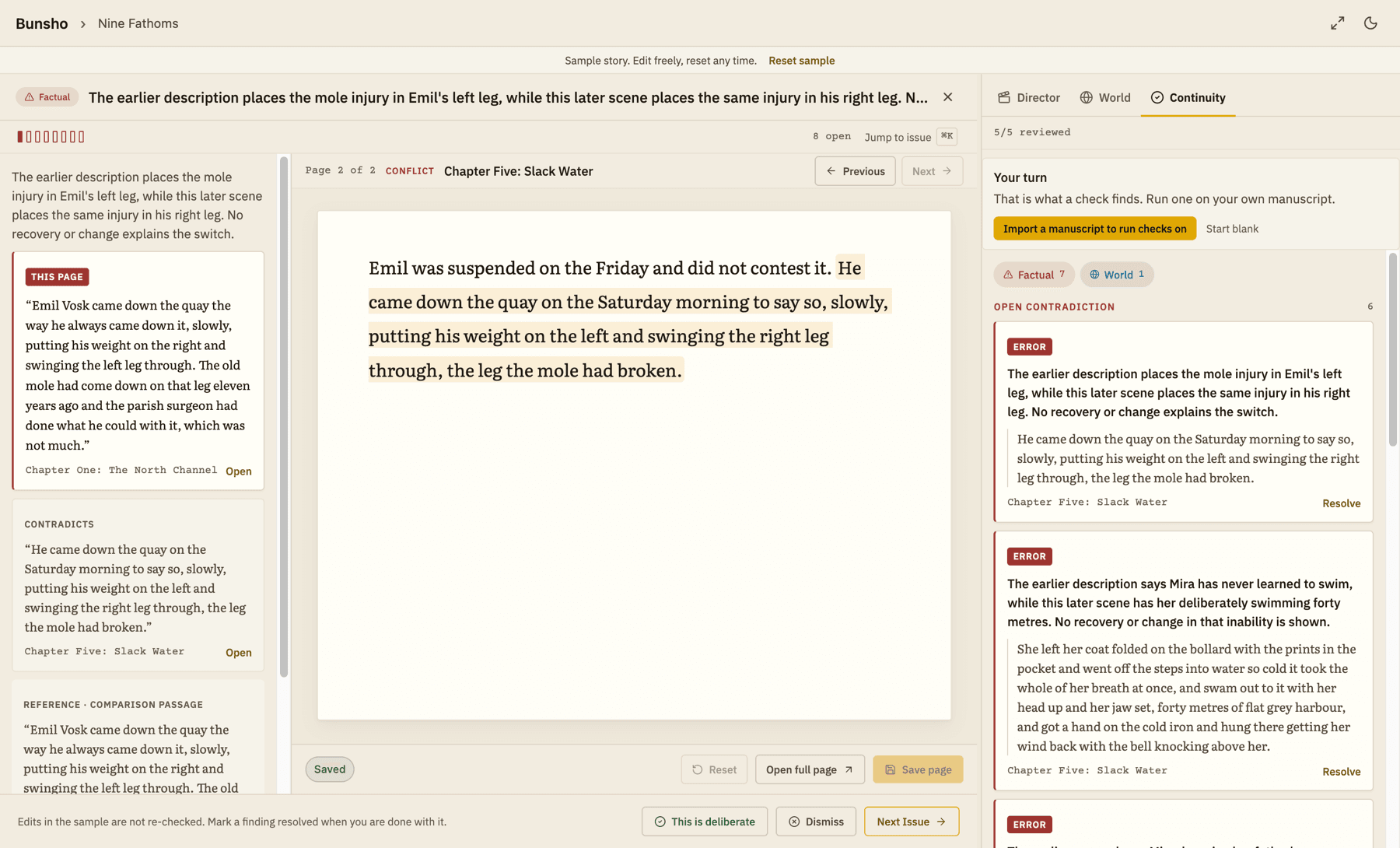
- Click Resolve on the card. A full-width view opens.
- On the left, read the passages. This page is the line in the chapter the check was looking at. Contradicts is the other line that seems to disagree with it. Each shows its chapter, with an Open link that jumps to that place in your book.
- Look for a Note or Context under them. They add detail when there is any.
- On the right is the chapter itself. You can fix the text right there. The corner shows Unsaved changes until you click Save page. Reset puts the page back as it was.
- Decide what to do with the finding (below).
Your choices
- Check if fixed: you changed the text and want Bunsho to look again. It shows the cost on the button. If the finding is gone, the view closes.
- This is deliberate: you meant it. Closes the finding.
- Dismiss: you do not agree it is a problem. Closes the finding.
- Next Issue: moves on to the next open finding without closing this one.
- Jump to issue, above the passages, lets you pick any open finding from a list. You can type in Filter open issues… to narrow it.
Findings about your canon
If you declared a fact true in the World tab and a line in your book disagrees, the card shows This page next to Canon. On the card you can click Resolve or Dismiss. In the full view, Revert on the canon card undoes a fact you promoted.
When a check finds nothing
The tab says No contradictions found and lists how many chapters were checked. That means nothing was confirmed in what was checked. It is not a promise that the book is perfect.
Related articles
Still stuck?
Write to us and tell us what you were trying to do. A person reads every message.
Email support@bunsho.io