
The World tab: your people, places and things
See the characters, places, objects and groups Bunsho recorded from your book, and add or correct them yourself.
Updated October 15, 2026
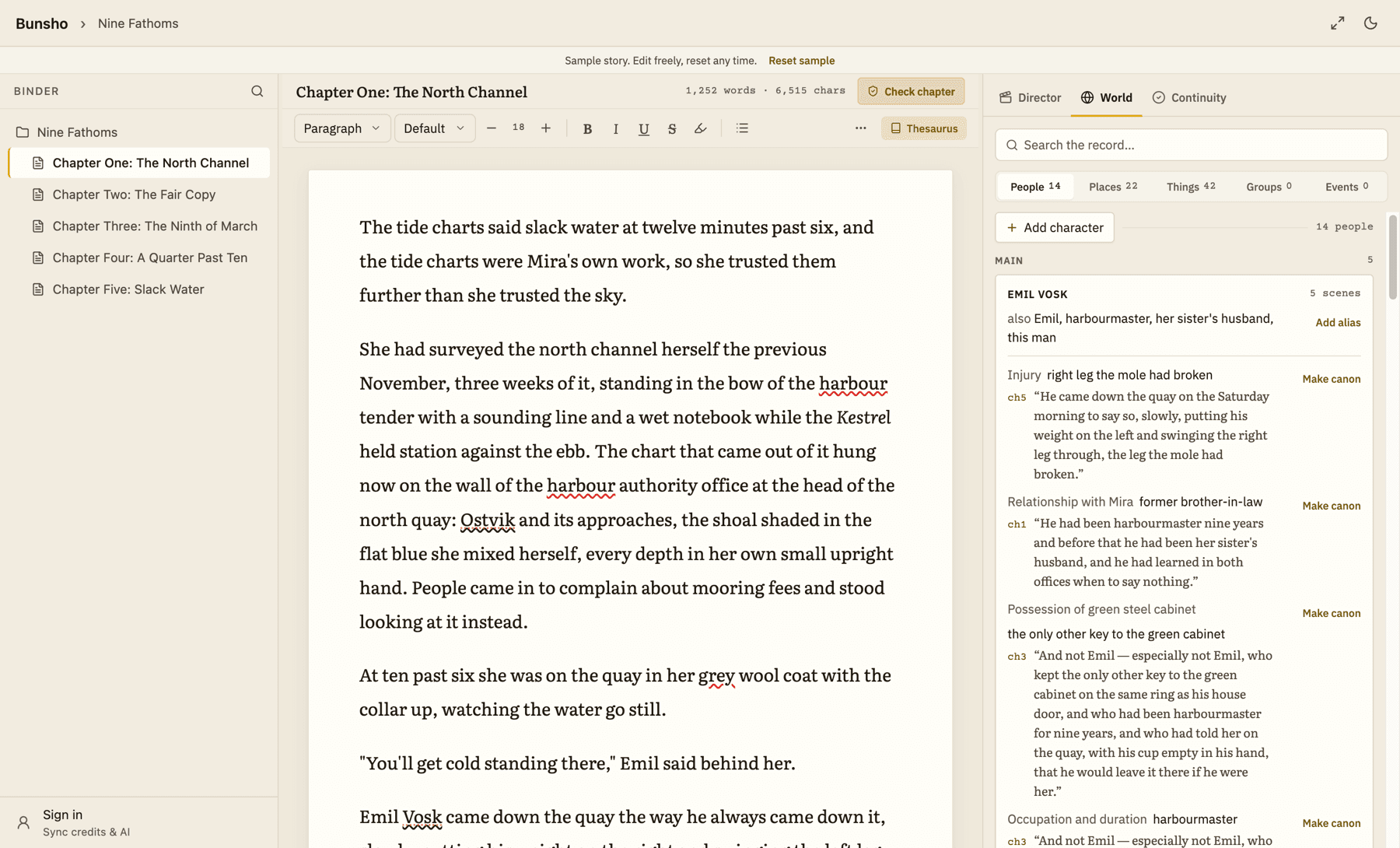
The World tab, in the panel on the right, is Bunsho's record of your story. It is the record your checks are held against, so it is worth a look.
Where entries come from
- Bunsho reads your book. Entries appear after Bunsho has read your chapters, through a first read or a check. Until then you see lines such as No characters yet that say Bunsho names them when it reads your manuscript.
- You add them. You can add a person, place, object or group yourself, with or without a read.
Each fact Bunsho found shows the chapter it came from and the line in your book. Click the chapter reference to jump to it.
Find your way around
- Open the World tab.
- Pick People, Places, Things, Groups or Events at the top. The number beside each is how many there are.
- Type in Search the record… to find a name or a fact.
- Entries are grouped as Main, Supporting and Mentioned once.
Events lists changes Bunsho noticed as things shift from chapter to chapter, such as a character's hair changing. It reads No changes tracked yet until it has seen some.
Say what is true: canon
Next to a fact Bunsho found, Make canon says: this is true in my story. Your canon outranks what Bunsho found. Later checks hold your chapters against it. A canon fact shows in a different typeface, with your mark under it, and the button changes to Revert or Edit.
- Find the fact on a character's card.
- Click Make canon.
- To change your mind, click Revert (for a promoted fact) or Edit (for one you typed).
Add things by hand
- Choose the type at the top, such as People.
- Click Add character (or Add place, Add object, Add group).
- Type the Name. If other names are used for them, type those under Also known as, separated by commas.
- Open a card and click Add a fact to write something that is true about them, or Add alias for another name.
When a chapter disagrees with canon, the check raises it as a question for you. See Read a finding.
Related articles
Still stuck?
Write to us and tell us what you were trying to do. A person reads every message.
Email support@bunsho.io