
Direct a scene
Tell Bunsho what happens, review the plan, have it write the scene, and keep only what you like.
Updated October 15, 2026
In the Director tab you say what should happen in a scene. Bunsho plans it as a short list of beats, writes it, and shows you the result. Nothing reaches your chapter until you click Keep.
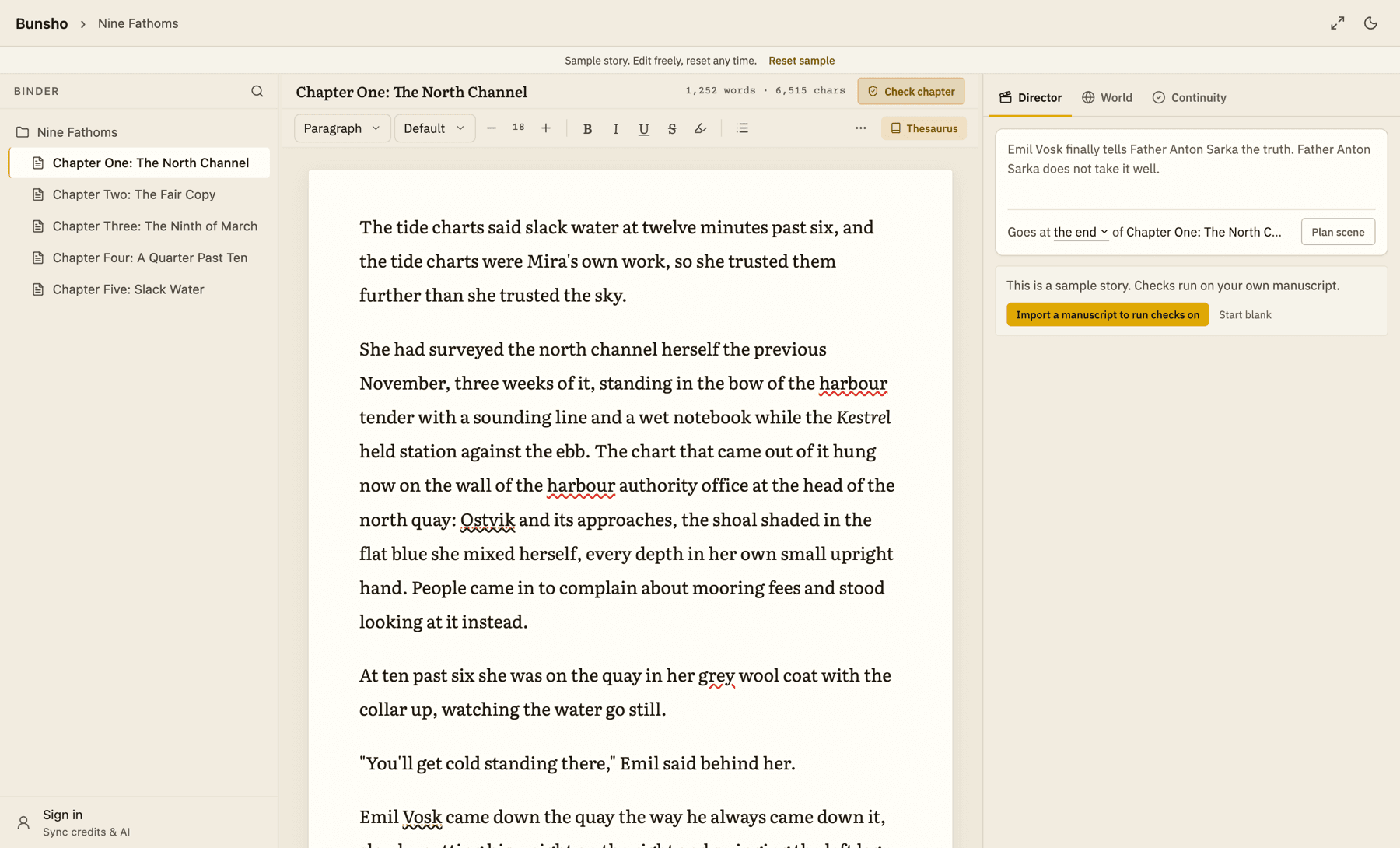
1. Write a direction
- Open the chapter where the scene should go. The scene goes into the chapter you are in.
- Click the Director tab on the right.
- In the box, say who is there and what happens. The box shows an example using names from your own book. Plain sentences are fine.
- To name someone from your cast, type @ and pick them from the list called cast in this scene.
- Under the box, choose where the scene goes: At the end of the chapter or At the cursor.
- Click Plan scene. The price is on the button. You can also press Enter (use Shift+Enter for a new line).
2. Look over the plan
Bunsho shows a scene card: a title, a short description, and the beats, which are the steps of the scene in order. Click Show beats to unfold them or Hide beats to fold them.
- To change the plan by hand, see Edit the beats of a scene. It costs nothing.
- To ask for a different plan, click Regenerate scene, add a note if you want one, and click Regenerate. The new card replaces this one, and Previous card brings the old one back until the scene is written.
- To change what you asked for, click Edit direction and plan again.
3. Write the scene
- Click Write scene. The price is on the button.
- While it works, the beats light up one after another.
- The draft appears on a page in the panel, with each beat's number in the margin. It is the draft only. It is not in your chapter yet.
- Hover a passage to see its beat. Click Rewrite this beat to redo just that passage, with an optional note. The price is shown.
4. Keep it, or not
At the bottom of the panel you see where the scene will go and its word count.
- Keep adds the scene to your chapter, at the end or at the cursor, as you chose.
- Discard throws the draft away. The panel says Draft discarded. Nothing reached the page.
After you keep a scene, Bunsho offers: the chapter changed, Check it against the record? Click Check this chapter to run a check (the price is shown) or Not now. It runs nothing by itself. See Check a chapter.
Earlier scenes
Scenes you have planned stay in the list under Earlier scenes, marked kept, not written or not kept. Click one to reopen it.
If something goes wrong
- The scene could not be written. The fault was ours. Try again. If credits were charged, the message says how many.
- Out of credits. The card stays as it is and Nothing was charged. Use Open billing.
- Open a chapter first means no chapter is open for the scene to go into.
Every Director action shows its price before you click. See What a check costs. This article describes novels. Screenplay projects use a different Director layout.
Related articles
Still stuck?
Write to us and tell us what you were trying to do. A person reads every message.
Email support@bunsho.io